Site on sale, contact us @ smartphonecity2012@gmail.com with your offer. Affiliate will be owner of 25% of total sale value.
Showing posts with label Symbian SPB Skins. Show all posts

Friday, 20 July 2012

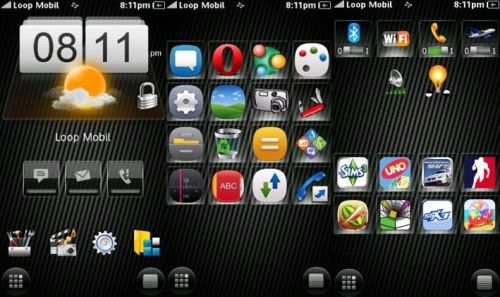
Htc One + Vivaz Mix Skin for SPB Shell - SymbianV5 - S^3 Anna Belle


Installations:


1. First off all Download SPB Mobile Shell v3.8.944 - Full - With Serial Key Here 
Now install and register it with key provided.
2. Download and extract zip folder. In zip folder You will find one folder name "SPBShell"
3. Now copy that folder to E: others SPBShell
4. Delete SpbShell_20028b16.reg file from C: system apps ( in order to see system folders use X-plore and do settings : Menu>Files>Attributes now tick
         - Show hidden folders and files
         - Show system file and folders
Now apply Oppen forAll Patch to edit System files and folders Download rompatcher and Patches Here )

5. Delete the file E: Private 20028b16 SpbShellBackup.reg
6. Copy spbmobileshell.rgs  to E: Private 20028b16 (Must Do it)
7. Place Belle.jpg in E:(Mass storage)

You can customize your screen by out Awesome Wallpapers Collection

You might also like SPB Mobile Shell v3.8.944 - Full 

Monday, 21 May 2012

How to Make Own SPB Shell Skin ? - Full Step by Step Tutorial


You can check out our Great Spb Shell skins Over here. What will be if you can make your own desired Skin ?Now you can learn how to make own SPB Shell skin from below tutorial. Whole credit goes to Raakaysh.

=> There are so many people who want to edit the Spb Mobile Shell to customize it in their own way and share their creation with the world. So here is a short article that will try to give you a step by step guide for modding the Spb Shell. I have had so many requests from my friends and others to tell them about modding the Shell. Since it was not possible to write a guide every time one asks you on a specific problem, I decided to prepare a wholesome account of the procedures.
The Spb Mobile for Symbian consists of two elements: the rle/bmp files that are made by converting a png file, and the xml part that lies inside all the dat files along with the rle/bmp files. The rle/bmp is related to the visual effect of the shell, while the xml entries define the function, arrangement and positioning of the elements of the Shell. Thus, for example, you will not be able to see any graphical widget unless there is an entry for it in the Widgets.xml (that is found inside the qa_layouts.dat) and the Index.xml (that is found inside every widget dat file). Thus, inside each va_xxx.dat there is the images of that widget ( 2 .bmp files for one image or 1 .rle file) and an archive called index.xml that contains the widget´s properties.

Opening a Dat File

You cannot open a dat file directly on your desktop so you need to change the extention .dat into .zip. Then right click on the file and extract it with WinRar or PowerArchiver. It would ask for a password that is ‘b0fm18zq’. Having extracted the dat files, you can edit them as you wish.

Converting a PNG Image to RLE or BMP Using Png2Skin

The Spb Mobile Shell for Symbian supports only rle/bmp images for its widgets and other graphical elements. Download a Sotware called Png2Skin.exe. I’ll set out my way of using png2skin.exe for you. This is how you can use the program: First of all create a folder as “1” in the C drive of your PC, and copy Png2Skin.exe inside it. So, it’s location is in C:\1. Now into that folder place all your files you want to convert to Rle format. Use Photoshop or any other Photo editor to make/convert/save as an image file in Png format. Copy the Png files to the newly created folder (‘1’). Now create a new text document and copy the following line in it:

c:\1\png2skin.exe c:\1\Arrows.png c:\1\ 8 RLE
In the above line ‘Arrows’ is the name of the png file to be converted to Rle. You can replace ‘Arrows’ with you own file name. Now copy the text-
  And paste it in the Windows Command Box. Then press the Enter key. Now you will see an Rle file beside your Png file. You can convert only one image at a time. Repeat the procedure to convert several images. Grab the Rle files and copy/replace them to your desired dat package.
You can also convert your Png images to Bmp by using Png2Skin.exe. For this, you will have to simply drag the Png image over the program icon. To edit an existing Bmp file, open it with Photoshop and cut out the image background to make it transparent. You can then convert it to to Rle or Bmp.

Creating a Widget in Spb Mobile Shell

As I have already said above, you need to do two things to create/add a new widget. Here we shall try to make a digital clock widget. The va_dclock_widget.dat file, for example, consists of three files: digits.rle, face.rle and index.xml. Therefore, you need to make the graphics file for the clock first. Thus, for this digital clock -

You will need two images: ‘face.rle’ and ‘digits.rle’. This is how they look before being converted to .rle format.
  
Now  take a look at the Index.xml file for this digital clock:
All you have to do is to play with the ‘x’ and ‘y’ values here. X value defines the horizontal (left/right) position of an image or element on your phone’s screen, so if you want to move the digits to the right side of the face, you only need to modify “22” in the timerect to a highernumber and if you want to move it to the left, give a lower number. In the same way Y defines the vertical (up/down) position. Use lower value to move it up and higher numbers to move down.
Having done this, we will have to pack the file into a .dat package. Put the there files (2 Rle and  index.xml) in a new folder. Open the folder and select all files by pressing Ctrl+A. Now right click on one of the files and select ‘Compress with Options’ (I use Powerarchiver for the purpose). The program will prompt you to input the password two times. Then click the Add button. You will have a new zip file in the same folder. Change the file extension from .zip to .dat. Now our dat package is ready. Rename the file name to ‘va_dclock_widget_green.dat’ (in this case).
The next step is to add the details of this widget in the widgets.xml that can be found inside the qa_layouts.dat. The widgets.xml generally has two entries for all widgets except the date and weather widgets. The first one looks like this:
<Plugin Name="ClockGreen" Class="Spb.LSP.DigitalClock" DoubleSkin="va_dclock_widget_green">
<BoundRect X="0" Y="0" Width="360" Height="115"/>
<String Name="_Size" Value="Green Digital Clock"/>
</Plugin>
And the second one, as follows:
<Plugin Name=" ClockGreen ">
 <BoundRect X="0" Y="0" Width="360" Height="115"/>
 </Plugin>
By changing the ‘x’ and ‘y’ values of the BoundRect, you can change the position of the highlight square line that appears over a widget when you try to drag its position on your screen in the Edit Mode of the Spb Shell. Changing the values of the Width and Height you can define the size of the highlight box of the widget. After making the entry of the widget in the widgets.xml, we need to save the changes and repack the qa_layouts.dat by following the above-mentioned procedure and put the file to the SpbShell folder located in E:/Others. Remember that each time you make any change in the qa_layouts.dat, you will have to exit delete the ‘SpbShell_20028b16.reg’ file from C:\System\Apps, and SpbShellBackup.reg from E:\Private\20028b16 \ to let the changes take effect.

Modifying the Features of the Shell

Exit the shell, then edit the file in the folder Spbmobileshell.rgs located in E:/private/20028b16.  Search/find the string ‘Panels’ or ‘ForceRemove Panels’ and delete unneeded panel to retain the structure and numbering. After that, you will have to delete the ‘SpbShell_20028b16.reg’ file from C:\System\Apps, and SpbShellBackup.reg from E:\Private\20028b16 \ to let the changes take effect.(WARNING: This will reset the Shell to the defaults, so do not forget to backup your settings from backup options in Menu> Settings> Right click the lower bar> Save Settings). Using less number of panels would free more RAM.

Sizes of Images for Wallpaper

You can use three sizes of images as wallpapers in the Spb Shell. In the Professional Mode, you can use 360×640 pixels Png/Jpeg images as wallpapers. However, in the Lifestyle Mode,  the ideal size of images should be 720×594 pixels in Jpeg format. You need to put these images in put in the folder E:\Images\Pictures\SPBShell\ (in the same drive on which you have installed the program). In some mods (my Spb Ultimate Edition Series, for example), you can configure different wallpapers on each homescreen. For this, you need to crop your images in 360×614 pixels. You can set fullscreen wallpapers with the help of the Picture Frame widget.

Adding Your Applications Folder  to SPB Menu

Open the file spbmobileshell.rgs by changing its extension to .xml. Here we shall try to add the “Video Player’’ to the program, for example, in the folder “Internet”. There are two ways to add an application to a specific folder: by defining the location of the .exe of a particular application, and by giving the UID. Here is the first method. Let’s begin and find the code:
ForceRemove 'Internet'
 {
 val Index = d '1 '
 val Image = d '2 '
 val Text = s 'Internet'
 val DrawType = s 'List'
 val MRUImage = d '185 '
 Code:
 ForceRemove 'Internet' - the name of the program
{
val Index = d '1 ' - her next number in the list
val Text = s 'Internet' - the name for the shortcut
val File = s' Z: \ sys \ bin \ BrowserNG.exe ' - path to .exe file or program in a form UID - '0 x101F4DED'
val ImagePath = s 'Z: \ sys \ bin \ BrowserNG.exe' - path to icon bend. This is either the path to the program, or UID
val MRU = d '0' - Parameter indicates the presence of the translation of the program's shortcut in some other language.
}
Or to add programs via UID, here is the code:
ForceRemove 'OperaBrowser'
 {
 val Index = d '2 '
 val Text = s 'Opera'
 val UseProgramName = d '1 '
 val Check = d '1 '
 val File = s '0 x101F4DED '
 val ImagePath = s '0 x101F4DED '
 val MRU = d '0 '
To add programs to the “Organizer”, search code:
ForceRemove 'Organizer'
 {
 val Index = d '0 '
 val Image = d '3 '
 val Text = s 'Organizer'
 val DrawType = s 'List'
 val MRUImage = d '186 '
To add programs in “Media”, look for the code:
ForceRemove 'Multimedia'
 {
 val Index = d '2 '
 val Image = d '6 '
 val Text = s 'Multimedia'
 val DrawType = s 'List'
 val MRUImage = d '189 '
Do not forget about the correct numbering, to avoid overlap.

Configuring the Number of Homescreens

Exit  the Shell first
Edit the file E: /System/apps/SpbShell_20028b16.reg.
Find the following lines:
[\ Software \ Spb Software House 2 \ Spb Mobile Shell \ Widgets \ HomeScreen]
ActivePage = 0
PageCount = 5
And change the PageCount = 5 to any value.  For example, for 9 pages change the value to ‘9’:
[\ Software \ Spb Software House 2 \ Spb Mobile Shell \ Widgets \ HomeScreen]
ActivePage = 0
PageCount = 9
After the changes restart the Shell.

How to Configure the Shell to Drag the Widgets to Bottom

1.  Extract qa_layouts.dat
2.  Edit LockScreen2.xml:
Height = "512" changed to "560"
 <Layout Name="360x640">
 <General>
 <Rect Name="DragRect" X="0" Y="0" Width="360" Height="512"/>
 </ General>
 </ Layout>
3.  Edit MenuBar.xml
Find the line:
<General>
<DialogObject Value="Spb.Data.MenuBar"/>
<LayerAlign Value="Bottom"/>
Change in:
<General>
 <DialogObject Value="Spb.Data.MenuBar"/>
 <LayerAlign Value="Bottom" Clip="0" />
Repack the qa_layouts.dat with the password “b0fm18zq” and copy to the folder /Others/ SPBShell. Restart the shell.

Editing the Bottom of the Spb Mobile Shell

Here is a list of xml files inside the qa_layouts.dat that determine the bottom portion of the shell in different screens (almost all files names start with ‘menu’). Take a look to find whwt is responsible for what.
  • MenuBar.xml – is responsible for the bar on the desktop;
  • MenuBar2.xml – for small menus and carousel;
  • MenuBarContacts.xml – a bar menu configures the contacts panel;
  • MenuBarCrop.xml – a bar on a page image cut to the desktop;
  • MenuBarList.xml – for when choosing a bar widgets;
  • MenuBarPopup.xml – For the pop-up window when you click the right button bar;
  • MenuBarPrograms.xml – Defines the configuration of the program panel;
  • MenuBarSkinDownloader.xml – at a bar when downloading images from Spb server;
  • MenuBarTransp.xml – I do not know why;
  • MenuBarWeather.xml – a bar in the weather.

Changing the Value of the Left Button Bar

  1. Copy the folder qa_layouts.dat shell on the computer.
  2. Rename a qa_layouts.zip.
  3. Unpack with winrar (password b0fm18zq).
  4. Open LockScreen2.xml and see what the name of a file that is responsible for the lower bar (if the custom theme). In the standard skin the code is:
     <Layers> <Layer/> <Layer Name=”Menu” Dialog=”MenuBar”/> </ Layers>
  5. Open MenuBar.xml with Notepad.
  6. Edit the following line:
 <Plugin Name="Panels" ID="3">
 <Int Name="ActivateOnPress" Value="1"/>
 <String Name="Action" Value="Panels"/>
 <Int Name="LeftBtn" Value="1"/>
 <Rect Name="SrcIcon" X="0" Y="108" Width="54" Height="54"/>
 </ Plugin>

 Options for the Designation of Panels

  • <String Name=”Action” Value=”Panels”/> (3D carousel)
  • <String Name=”Open” Value=”:BTN0″/> (Selected Programs)
  • <String Name=”Open” Value=”:LAUNCHER”/> (Selected Programs)
  • <String Name=”Open” Value=”:SPBMENU”/> (Spb Menu)
  • <String Name=”Open” Value=”:BTN1″/> (Contact)
  • <String Name=”Open” Value=”:CALLLOG”/> (Call History)
  • <String Name=”Open” Value=”:CONTACTS”/> (Spb Contacts)
  • <String Name=”Open” Value=”:FAVORITES”/> (Selected Contacts)
  • <String Name=”Open” Value=”:WEATHER”/> (Weather)
  • <String Name=”Open” Value=”:WEATHERCOND”/> “(Current weather)
  • <String Name=”Open” Value=”TASKMANAGER” /> (SPBshny Task Manager)
  • <String Name=”Open” Value=”:MANAGEFAVS”/> (Carousel favorite contacts)
  • <String Name=”Open” Value=”:AGENDA”/> (Schedule)
  • <String Name=”Open” Value=”:TIME”/> (Time (world + clock)

Tuesday, 15 May 2012

Sense 4.0 HD SPB Shell Mod - Skin - by PlatinumBox - Free Download


‘Sense 4.0 HD Mod’ is a small but beautiful skin pack for Spb Shell by PlatinumBox. Download the pack and copy the .dat files to the E:/Others/SpbShell folder and restart shell.

Download more SPB SHell skins Here

You might also like SPB Mobile Shell v3.8.944 - Full

Source
Click below to Download
HTC               Mirror

Tuesday, 1 May 2012

Symbian Belle SPB Shell Skin for Symbian V5 - S^3 Anna Belle -(5233, 5230, 5530, 5228, C6, 5800 , 97, N8, X6, X7, C5, T7,etc.)


Symbian belle User interface is well known for its beauty. Unfortunately Symbian v5 users can't use this UI and features as Original Firmware.

Recently launched Nokia belle shell app for Symbian v5 and S^3 attracts all Belle UI lovers but  it has some disadvantages too like high ram consumption (30mb), selected wallpapers, selected home screen widgets, etc.
If any app that full fill belle shell disadvantages then that will be perfect for all Belle UI lovers.

Raakaysh admin at cellcustomize make it possible and maid SPB Belle skin for all belle ui lovers.
In this skin you can apply your desired wallpaper and use home-screen widget like Facebook, smartphonecity widget, accuweather, etc
Ram consumption is also fine (15 - 20 mb) and You also got Drop down notification bar in this skin.

Note: This SPB Shell Skin will not change your OS to belle.

After lots of  complains of getting error in applying skin we tested it in Nokia 5233 and N8 found working after some new trick.

Installations:


1. First off all Download SPB Mobile Shell v3.8.944 - Full - With Serial Key Here 
Now install and register it with key provided.
2. Download and extract zip folder. In zip folder You will find one folder name "SPBShell"
3. Now copy that folder to E: others SPBShell
4. Delete SpbShell_20028b16.reg file from C: system apps ( in order to see system folders use X-plore and do settings : Menu>Files>Attributes now tick
         - Show hidden folders and files
         - Show system file and folders
Now apply Oppen forAll Patch to edit System files and folders Download rompatcher and Patches Here )

5. Delete the file E: Private 20028b16 SpbShellBackup.reg
6. Copy spbmobileshell.rgs  to E: Private 20028b16 (Must Do it)
7. Place Belle.jpg in E:(Mass storage)
8.Use Smartphonecity.in.set from Zip achived to restore our default settings.( To restore settings go SPB Menu>settings now select settings from rigt side of Navibar and select Restore then select Smartphonecity.in.set file from where you pasted)


Done now start Spb Shell App

Note: Tap on the Top Left Corner for Carousal, and Right for Options        

You can customize your screen by out Wallpapers Collection ( Click here)

You might also like our other SPB Shell Skins Over here

If you still having problem then comment below to make us help you :)

Share and tell your friends

Friday, 9 March 2012

Windows Phone SPB Shell - Skin - Lumia UI - Refreshed - Symbian V5 - S^3 - Anna Belle Free SPB Skin Download


If you love windows phone User Interface then this is perfect app for you. Now enjoy lumia skin in spb with more possiblities. Now you can add your favorite apps in tiles and add widgets tiles.
Change size, color, link , etc of tiles and make your smartphone more beautifull.
You guys may be searching for this UI app if so then we make your jurney stop :)

Best windows phone UI for your symbian device .


How to apply skin:

1. Close SPB Shell first.
2. Extract the rar file.
3. Copy Spbshell folder to E:\Others\  ( remember capital or small word mistake may be cause and you cant apply skin, this folder name always 'SPBShell".
4. Replace the file SpbShell_20028b16.reg in C: \ system \ apps
5. Remove file E: \ Private \ 20028b16 \ SpbShellBackup.reg (If you don't have access, connect phone to mass storage)
6. Run Spb Shell !!!


You might also like our other awesome SPB skins - Get Here

Click below to Download

Monday, 20 February 2012

GOOGLE NEXUS SPB SKIN FOR SPB SHELL 3.7


1. Exit SPBShell first
2. Copy all .dat files to Spbshell folder to E:/others/SPBShell
3. Delete SpbShell_20028b16.reg file from C:systemapps
4. Delete the file E:Private20028b16SpbShellBackup.reg
(Use Xplore or Nokia File Browser for the Purpose. It can also be done with PC in Mass Storage Mode)
5. Copy spbmobileshell.rgs to E:Private20028b16 (Must Do it)
6. Restart spb mobile shell.

Credit goes to raaksya.


Click below to Download
                                                                  nexus

Saturday, 11 February 2012

Symbian Belle Clock For SPB Shell 3D.


Download


Monday, 6 February 2012

Spb Time v3.5.4141 for S60v5 - Symbian ^3 - Anna - Belle free Download

SPB Time is an skinnable, advanced, time toolbox for your Symbian phone. Analog and digital clock modes, timers, World clock and stopwatches, and advanced alarms. A lot of time-related functions in this world's bestselling application ever! 


SPB Time includes any kind of clock and time tools you would like: 
- All inclusive 
- Analog and digital clocks 
- Moon phases Various alarm types to fit your lifestyle: 
- Unlimited number of alarms 
- Classic alarms 

- Animated themes
- World time 
- Alarms and timers 
- Calendar 

- Reccuring and one-off alarms 
- Highly customizable Both stopwatch and countdown timers are included: 
- Stopwatch 
- Bio alarms 
- Paranoid alarms 
- Online skin catalog 
- 50+ FREE themes 
- Easy installation  
- Countdown timers 
- Customizable Highly customizable user interface


Download here for free


Wednesday, 25 January 2012

SPB - Galaxy S Design - Skin / Theme - Symbian V5 - S^3 - Free Spb skin Download


Here is new SPB shell skin Samsung Galaxy S.

Must Do: Read Carefully

1. Exit SPBShell first
2. Copy all files to Spbshell folder to E: others SPBShell
3. Delete SpbShell_20028b16.reg file from C: system apps
4. Delete the file E: Private 20028b16 SpbShellBackup.reg (Use Xplore or Nokia File Browser for the Purpose. It can also be done with PC in Mass Storage Mode)
5. Copy spbmobileshell.rgs to E: Private 20028b16 (Must Do it)
6. Run spb mobile shell


The folder also have some readme file so also go through out them also.


Click below to Download
Galaxys_symbian_.zip


Download more SPB shell skins here

Friday, 20 January 2012

Mods For SPB Mobile Shell HTC NEW by HBKNINAD-S60V5 AND S^3 ANNA BELLE FREE DOWNLOAD


Must Do: Read Carefully

1. Exit SPBShell first

2. Copy all files to Spbshell folder to E: \ others \SPBShell

3. Delete SpbShell_20028b16.reg file from C: \ system \ apps

4. Delete the file E: \ Private \ 20028b16 \ SpbShellBackup.reg

(Use Xplore or Nokia File Browser for the Purpose. It can also be done with PC in Mass Storage Mode)

5. Copy spbmobileshell.rgs to E: \ Private \ 20028b16 (Must Do it)

6. Run spb mobile shell.

if it ask for registration google for spb registration codes or use cracked spb shell software:)

About MSettings.set File:

This files contains the settings that I have created for my phone. If u use it, u

will get the same look as in the Preview Picture on ur phone. U r free to use it or not,

and customize the shellin ur own style.To use it, first of all put the .set file

anywhere in ur phone. Tap on the Top Left corner of ur screen,

select a window titled ‘SPB Menu’, choose ‘Settings’, NOW tap on the Left Bottom corner,

choose ‘Restore Settings’, then browseto the MSettings.set file and select it. Wait until

the shell restarts.The settings wud be loaded automatically.
DOWNLOAD HERE

Thursday, 8 December 2011

Android 2.2 froyo without SPB Shell on your Nokia S60v5 and symbian^3 like Nokia 5233, 5230, x6, n8, x7, c6, c6-01, e7, e6 5800 etc.


Now enjoy Android froyo on your Nokia mobile without SPB shell. Its like official Android 2.2 froyo and works like you have original Android mobile.

Here is tutorial:-

1. Download this file GDesk v0.35b3.rar
2. Extract GDesk v0.35b3.rar to your memory card.
3. Install all sis files.
4. then run GDesk app in your mobile. 
5. Tap to screen and click on design option.
6. then again tap to screen and select load design.
7. Select Froyo.gdd
8. Then goto option and tick fullscreen and in orientation tick portrait.


                                                                 Download


Please like us Facebook.

Wednesday, 7 December 2011

SPB Ulmtimate edition for SPB shell 3.7


Whats new in this:-

1. BottomBars updated
2. 4 new Digital Clocks and 1 new Anolog Clock
3. 4 new weather widgets
4. Weather Panel Icons changed
5. New icons added as the Shortcut link
6. 2 New Side Bars
7. 1 Semi-Transparent Box+ 1 Deep shade frame
8. 6 New Status Widgets 9. 8 New Drop Boxes in Different Styles
9. New Slider Bar
10. New Icons in the Program Menu and Add Widget Panel
11. Fullscreen Picture Frame as ‘Paper Large’added 12.2 Fonts for Flip Font (Put the files in c:/data/FlipFont
13. New Wood Shelves Effects in Program Menu Panel


Steps:-

1. Exit SPBShell first
2. Copy all files to Spbshell folder to E: others SPBShell
3. Delete SpbShell_20028b16.reg file from C: system apps
4. Delete the file E: Private 20028b16 SpbShellBackup.reg (Use Xplore or Nokia File Browser for the Purpose. It can also be done with PC in Mass Storage Mode)
5. Copy spbmobileshell.rgs to E: Private 20028b16 (Must Do it)
6. Run spb mobile shell .


                Download Part 1                                                                    Download Part 2

52 Analog clocks collection for SPB shell.


Download and Enjoy!

                                                                 Download

100 dIgital clocks for SPB shell


Hello friends here is a big collection of 100 digital clocks widgets for spb shell.


                                                          Download

HTC Platinum SPB skin for SPB Shell 3.7 - Free Download


Steps:-

1. Exit SPBShell first
2. Copy all files to Spbshell folder  to E: others SPBShell
3. Delete SpbShell_20028b16.reg file from C: system apps
4. Delete the file E: Private 20028b16 SpbShellBackup.reg
(Use Xplore or Nokia File Browser for the Purpose. It can also be done with PC in   Mass Storage Mode)
5. Copy spbmobileshell.rgs to E: Private 20028b16 (Must Do it)
6. Run spb mobile shell.


                                                   Click below to Downlaod
                                                                                htc below

Tuesday, 6 December 2011

Android 2.2 Froyo SPB shell skin for SPB Shell 3.7


How to Use:-

Exit SPBShell first.
  • Copy all files to Spbshell folder  to E: others SPBShell
  • Delete SpbShell_20028b16.reg file from C: system apps
  • Delete the file E: Private 20028b16 SpbShellBackup.reg
    (Use Xplore or Nokia File Browser for the Purpose. It can also be done with PC in   Mass Storage Mode)
  • Copy spbmobileshell.rgs to E: Private 20028b16 (Must Do it)
  • Run spb mobile shell.


                                                               Download File

30 Battery skins for SPB shell 3.7 for Nokia.


Here is pack of 30 Battery skins for SPB shell 3.7 for nokia mobile. 30 Different battery skins makes your mobile HS more beautifull.

Here is Download Link:- forum.allnok ia.ru/fil es/10/ 50/ba tter ies_8 51.zi p

Monday, 5 December 2011

3d spb shell cracked full with key for s^3- full spb 3d download

Now enjoy 3D graphics in your symbian smartphone with spb 3 .
See widgets in 3D now possible. Work smooth and fast.

Register Code: B83P-R4Q2-FSTW or
B83H-J8JJ-Y8RU

                                                        DOWNLOAD (mediafire)

Like and follow by email to get latest updates.

Enjoy!!!

SPB Mobile shell 3.7.2 for symbian v5- full spb shell download with key


I am uploading this because of of users cant find lateat spb full . So download from here and insert the below any key-


8C5BMLDGK4SP
8C522G26R23N
8C563PTQHH0G
8C5MHQRZRAY8
8C58HH9P78A2
8C5MPBBGMZ5Z 8C5CBOVOBSUJ
8C5FGLREJNV6
8C5QM56KKN4P
8C56K4MZ778T
8C5AAJPS3VET
8C5FCHNRF4SY 8C56RGAS293B
8C55WCX5M9P3
8C5G7WMUU2NT
8C5Q4PNPAQ5C
8C53HCKGNTD7
8C5LKATBIGFS 8C5W-SMUI-277V
8C5W-SMUI-277V
If you need serials, try these codes:
8C5C-84Q8-DJTC
8C59-8UN9-Q***
8C5P-5CWK-DH8I 8C5F-PDMU-DTZL
8C5O-LSU4-B9EY
8C5W-EVJN-S33C
8C5H-Z59O-IBKF
8C5M-EKRI-KRCG
8C5G-J735-DQCU Keys..........
8C5BMLDGKI4P
8C5BMLDGK4SP
8C522G26R23N
8C563PTQHH0G
8C5MHQRZRAY8 8C58HH9P78A2
8C5MPBBGMZ5Z
8C5CBOVOBSUJ
8C5FGLREJNV6
8C5QM56KKN4P
8C56K4MZ778T 8C5AAJPS3VET
8C5FCHNRF4SY
8C56RGAS293B
8C55WCX5M9P3
8C5G7WMUU2NT
8C5Q4PNPAQ5C 8C53HCKGNTD7
8C5LKATBIGFS Register it with below any code: 8C5W-SMUI-277V
8C59-8UN9-QGAY
8C5P-5CWK-DH8I
8C5F-PDMU-DTZL
8C5O-LSU4-B9EY
8C5W-EVJN-S33C 8C5H-Z59O-IBKF
8C5M-EKRI-KRCG
8C5G-J735-DQCU


                                          DOWNLOAD (mediafire)


THIS IS COMPLETE SATISFACTION PLACE DONT MISS ANY THING LIKE US ON FACEBOOK AND SUBSCRIBE BY EMAIL.

Sunday, 4 December 2011

65 status widgets for SPB SHELL for Nokia Symbian^1 and Symbian^3


Here is another big collection of almost all beautifull  Status widgets for Spb Shell for Symbian Touch phones.
Download and enjoy!

                                                     Download

If you are first time here, Like our page to receive all new updates on your Facebook Wall.

Powered By | Best Site for Your Smartphone Via Fastest Growing Site

ShareThis

Related Posts Plugin for WordPress, Blogger...

 
Design by SmartPhoneCity | Bloggerized by Smartphonecity - (C) SMARTPHONECITY.IN | Admin: admin@smartphonecity.in